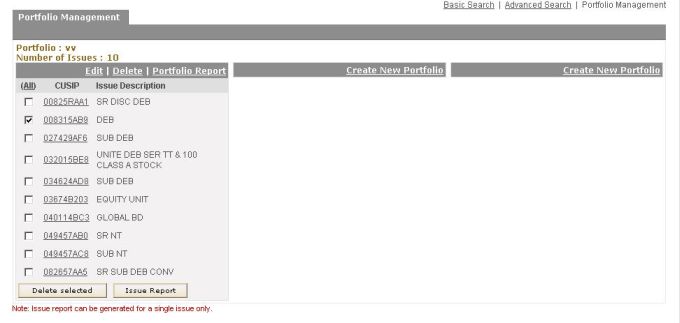
You can have a maximum of three portfolios for your username. If you do not have any portfolio for you yet, you can start creating one right here. You can also modify and delete your existing portfolios on this page.
In the Portfolio Management page you will find columns for each portfolio displaying CUSIP and Issue Description for each issue. Number of issues covered by the portfolio is displayed on the top of each column. You will also find a checkbox in front of each issue. You can select any CUSIP link to access the issue details for that particular issue.
Note: You will be accessing Portfolio Management pages through SSL (Secured Socket Layer)
You can select one or more issues contained in the portfolio by selecting the appropriate checkbox. Selecting the “(All)” link on the top will select all the checkboxes, therefore the issues for that portfolio. You can deselect all the checkboxes by selecting the “(All)” link again.
Below each column for portfolio, you will find a “Delete Selected” button. You will be able to select this button, only if you have chosen one or more issues by selecting the corresponding checkboxes. On selecting this button the selected issues will be removed from this portfolio. A confirmation dialog box will ask you, if you really want to remove the selected issues from the portfolio. Select the “OK” button to proceed or “Cancel” button to abort the operation.
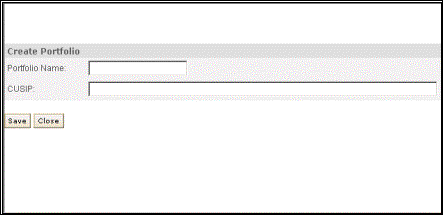
You can select the “Create New Portfolio” link to access the Create Portfolio page. Here you need to enter the Portfolio Name and the CUSIP. You can enter CUSIP for each issue separated by commas. You can have a maximum of 200 issues for a portfolio. Select the “Save” button to confirm creation of the new portfolio. The newly created portfolio will be displayed in a column on the Portfolio Management page. If you select the “Close” button the portfolio will not be created.
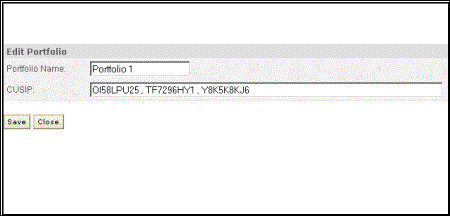
You can access the Edit Portfolio page by selecting the “Edit” link on top of the portfolio column. This will bring up the Edit Portfolio page for that particular portfolio. You can change the Portfolio Name and modify the CUSIP series entered, separated by commas. Select the Save button when you are finished with editing. You will be back on the Portfolio Management page. A message will be displayed on the top confirming successful modification of the portfolio. You can also select the Close button if you do not want to save the modifications you have made to the portfolio.
You will find a “Delete” link beside the “Edit” link for each portfolio column. Selecting this “Delete” link will remove the portfolio. You will be asked to confirm deletion through a dialog box before the portfolio is removed. When a portfolio is deleted, the column would become empty. You will find a new link “Create New Portfolio” on the top, instead of “Edit” and “Delete” link for that column.